Import a Rigged Character into Unreal Engine
Export a rigged, animated character as FBX or glTF and import it into Unreal Engine as a Skeletal Mesh with one Animation Sequence per clip.
The character is rigged, animated and has swinging hair. Now it has to arrive in the engine as something you can drive with an Animation Blueprint. This page covers the export from Forge and the import into Unreal Engine, with notes for Unity and Godot. It is the last card in Free Auto Rig for Game Characters.
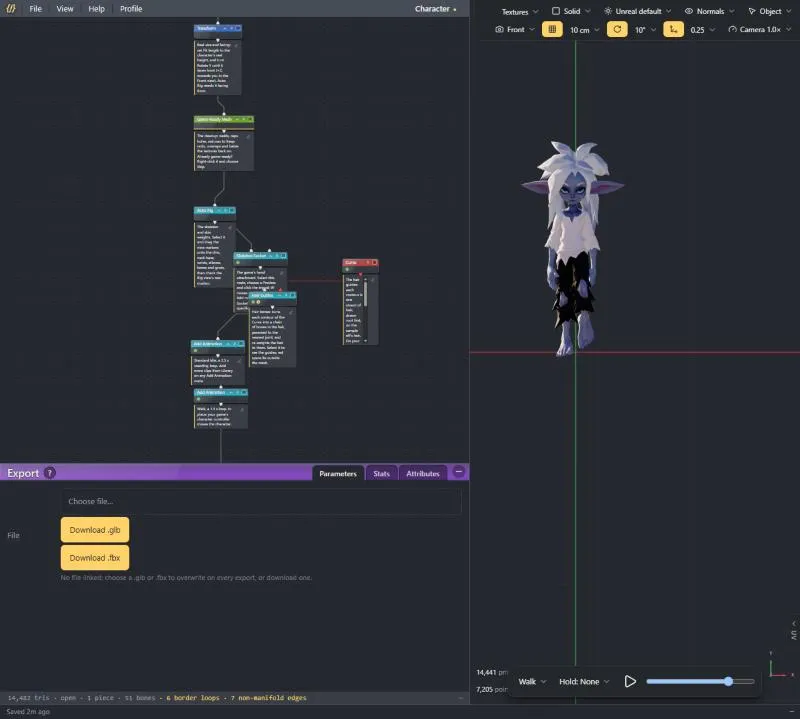
Export one file
Select the Export node at the end of the chain. In Chrome or Edge, click Choose file and pick a location, ideally a folder inside your Unreal project; every later export overwrites that same file, so iterating is one click. In other browsers, use Download .glb or Download .fbx.
Both formats hold the same thing for a rigged character: the skinned mesh, its skeleton in the rest pose, and every clip as its own named animation (Idle, Walk, Jog, plus any you imported). The differences:
- .glb keeps everything Forge makes, including full PBR materials.
- .fbx is binary FBX 7.4 in meters, Y up, with its textures embedded in one file. Each clip is written as its own take. FBX has no full PBR material, so metal and roughness become plain values and a few extras are dropped; the Export node’s ! badge lists what was left out.
For Unreal, pick FBX if your team’s pipeline already runs on it, and glTF if you want the materials to come across intact.
Do not use the Unreal Engine Output node for this. It sends static meshes only and reports that the rig and clips were left behind.
Import into Unreal Engine
- Drag the exported file into the Content Browser, ideally into a folder of its own.
- In the import dialog, import it as a Skeletal Mesh, leave the Skeleton empty so Unreal creates a new one, and make sure animations are imported.
- Import.
Unreal reads the file’s units and up axis and converts them, so the character arrives at the height you gave it in Forge. You get:
- a Skeletal Mesh of the character;
- a Skeleton with Mixamo’s joint names (plus
Hair_01_1and so on if you added hair guides); - a Physics Asset generated for it;
- one Animation Sequence per clip, each playable on its own.
Open the Walk sequence and press play. The character should walk in place with its hair swinging. Because the hair motion is baked into the keys, there is nothing else to set up for it.
Put it on a Character
The quickest test is a Character Blueprint:
- Create a Blueprint based on Character and set its Mesh component’s Skeletal Mesh to the imported character.
- Line the mesh up with the capsule. Unreal characters face +X, so if yours faces sideways, rotate the Mesh component on Z (the stock Mannequin template uses -90), and move it down so the feet sit at the bottom of the capsule.
- Create an Animation Blueprint for the new Skeleton with a Blend Space or a simple state machine that plays Idle when still and Walk or Jog by speed. The clips play in place, which is exactly what Character Movement expects: it moves the actor, the animation moves the legs.
Using Unreal’s own animations
The skeleton is Mixamo-style, not the Unreal Mannequin’s, so Mannequin animations do not play on it directly. You have two options. In Unreal, set up an IK Retargeter from the Mannequin to the new Skeleton. Or retarget before export: drop the Mannequin animation files into Forge’s Add Animation node, which recognises UE4 and UE5 Mannequin skeletons and fits each clip to your character, and they arrive in Unreal as ordinary Animation Sequences.
Unity and Godot
- Unity: import the
.glbwith the glTFast package, or the.fbxdirectly. Each clip becomes its own animation. Forge’s Engine Output node can also send the character straight into an open Unity project as a prefab with an Animator Controller (early access). - Godot: import the
.glb. The clips arrive in an AnimationPlayer on the imported scene.
That completes the pipeline: a static model in, a rigged and animated game character out, without opening a 3D suite. If something looks wrong in the engine, the fix is almost always upstream: revisit the markers or the model preparation, export again, and reimport.
Frequently asked questions
- Should I export FBX or glTF for Unreal Engine?
- Either works for a rigged character. Both hold the same skeleton, skin and named clips. FBX goes through Unreal's long-standing skeletal mesh import; glTF keeps full PBR materials. If your project's pipeline already expects FBX, use FBX.
- Why doesn't the Unreal Engine Output node send my rig?
- Forge's Unreal Engine Output node pushes static meshes only, without the skeleton or clips, and says so. For an animated character, export a file and import it in Unreal instead.
- Can I use Unreal Mannequin animations on the imported character?
- The character uses a Mixamo-style skeleton, not the Mannequin's, so in Unreal you retarget Mannequin animations onto it with an IK Retargeter. Alternatively, add the Mannequin animation files in Forge before export: Add Animation retargets UE4 and UE5 Mannequin clips onto the character for you.
- Does the hair physics still work in Unreal?
- Yes. The hair swing is baked into each clip as bone keys, so it plays inside every Animation Sequence with no physics asset, spring bones or Control Rig setup.