Fog of War in Unreal Engine: The Fog Manager and Post-Process Setup
How the Fog Manager holds top-down fog of war together: an unbound post-process volume, a dynamic instance of the M_Main_Fog_Volume material driven from C++, and the fixed parameter contract it fills every tick.

This is step three of the Top-Down Fog of War in Unreal Engine
guide. The introduction and the
actors and components laid out the
system; here we build the actor that holds it together. By the end you will have the
foundation: an unbound post-process volume that darkens the whole level, a Fog Manager
pushing live world data into a dynamic instance of M_Main_Fog_Volume, and the parameter
contract the rest of the masks read.
The Fog Manager actor
The actor that owns the effect is AFogManager. Its Blueprint, BP_FogManager, is thin;
the real work is in the C++ parent, which creates the post-process volume, builds a
dynamic material instance, and pushes world data into it every tick.
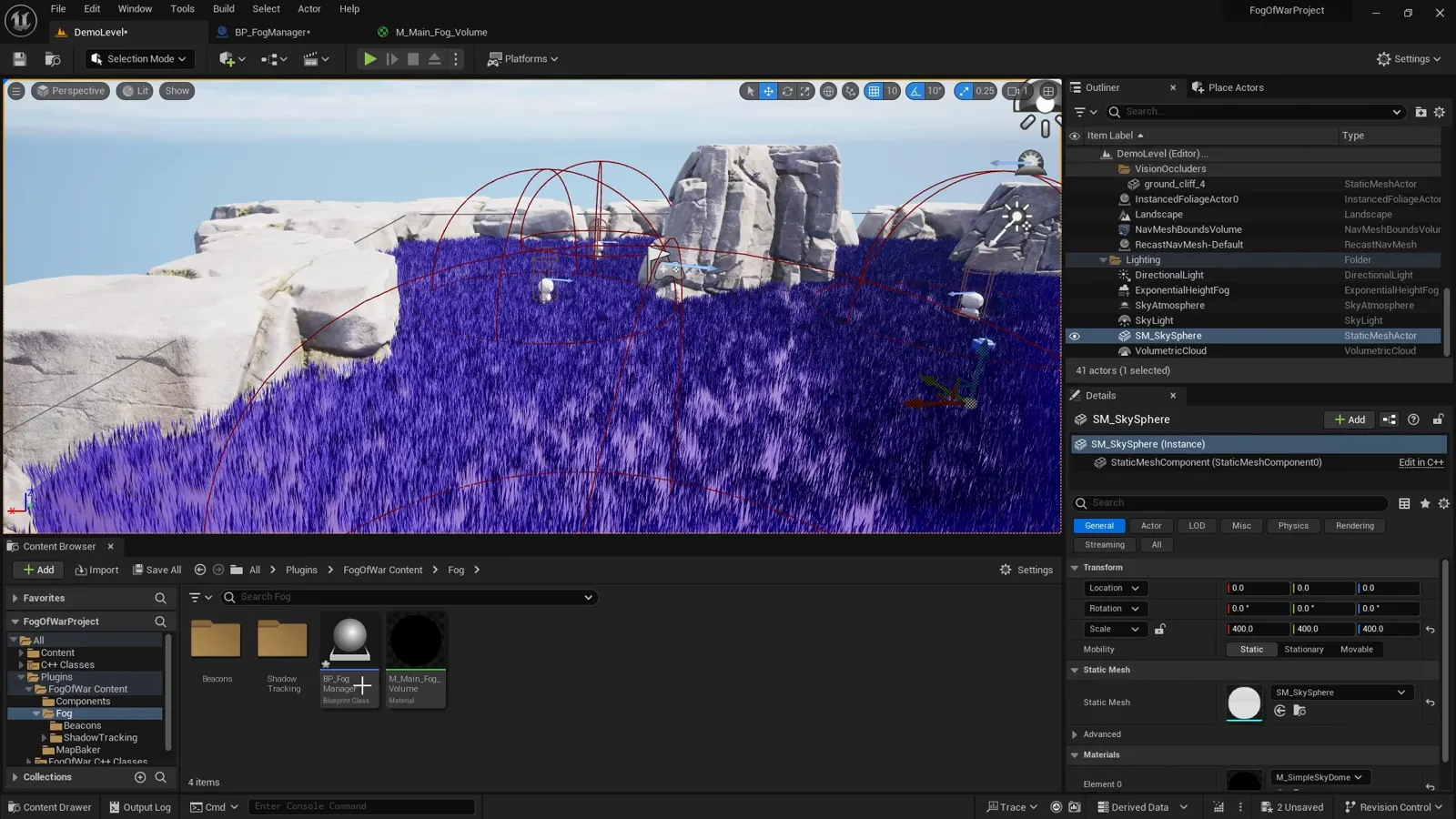
Here is the full BP_FogManager graph to inspect node by node:
Constructor: an unbound post-process volume
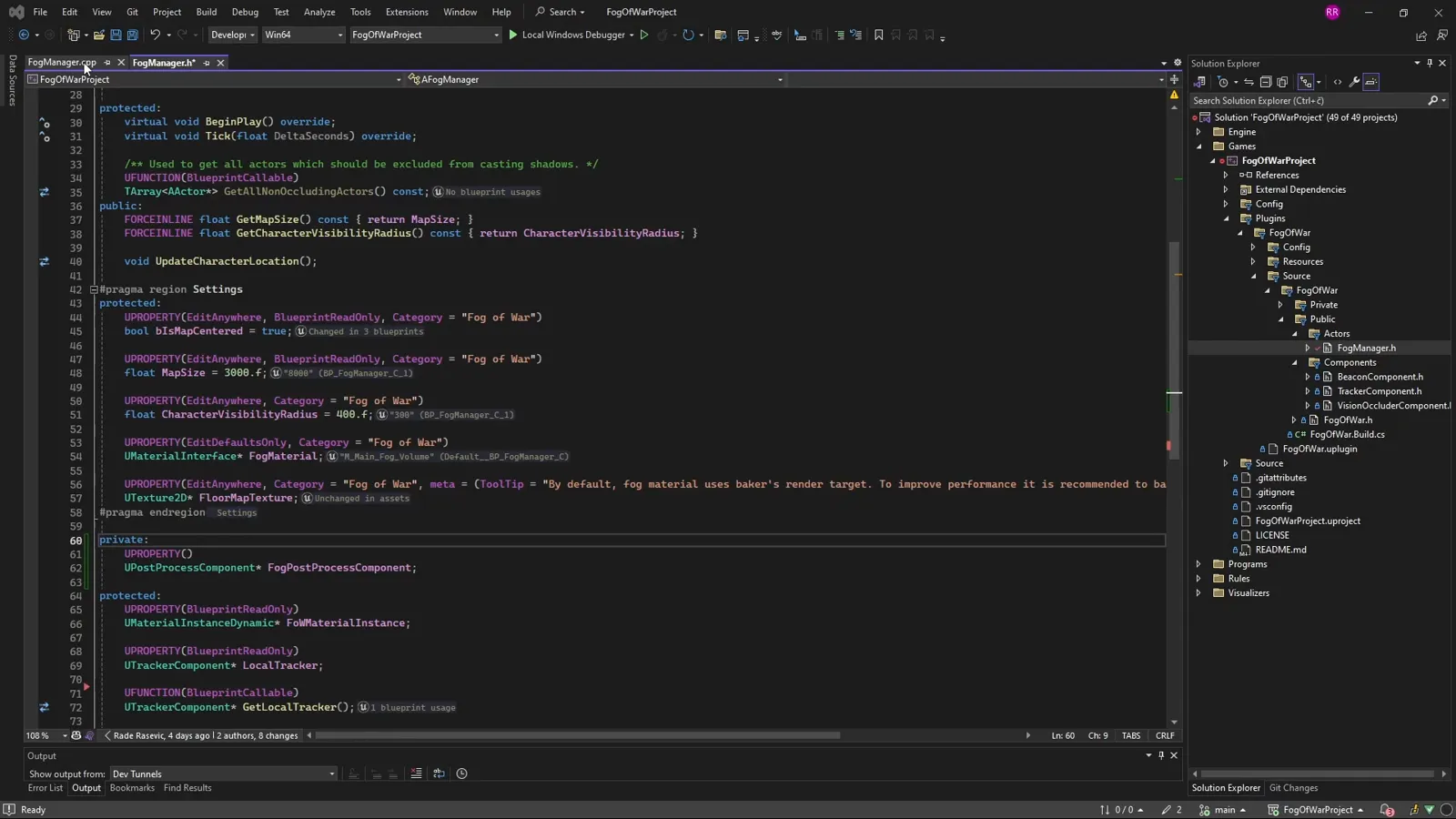
In the constructor we create a UPostProcessComponent and set bUnbound = true, so the
volume affects the entire world rather than only the space inside its bounds. That one
flag is what lets the fog cover the whole map from a single actor. We also tick at a fixed
60 Hz and mark the actor relevant only to its owner, since the fog is local.
AFogManager::AFogManager()
{
    PrimaryActorTick.bCanEverTick = true;
    PrimaryActorTick.TickInterval = 1 / 60.f;
    // The fog is purely visual and local, so each client runs its own manager.
    bOnlyRelevantToOwner = true;

    FogPostProcessComponent = CreateDefaultSubobject<UPostProcessComponent>(TEXT("FogPostProcess"));
    FogPostProcessComponent->bEnabled = true;
    FogPostProcessComponent->bUnbound = true; // cover the whole world, not just the bounds
}
BeginPlay: a dynamic material instance
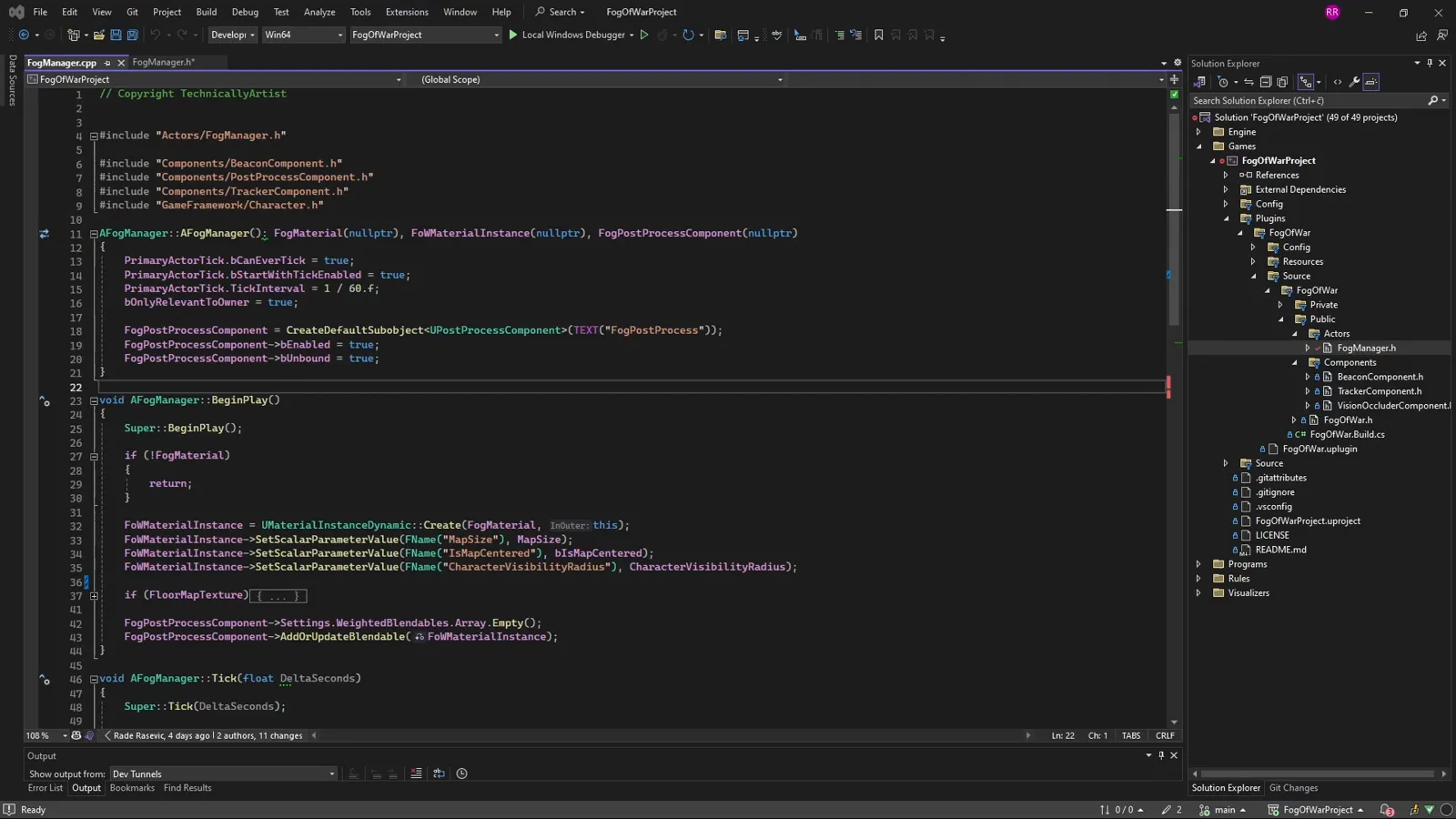
A plain material cannot receive live values, so in BeginPlay we make a
UMaterialInstanceDynamic from M_Main_Fog_Volume, push the values that never change
during play (map size, whether the world origin is centered, the visibility radius, and
the baked floor texture), and add the instance to the post-process volume as a weighted
blendable.
void AFogManager::BeginPlay()
{
    Super::BeginPlay();
    if (!FogMaterial) return;

    FoWMaterialInstance = UMaterialInstanceDynamic::Create(FogMaterial, this);
    FoWMaterialInstance->SetScalarParameterValue("MapSize", MapSize);                         // e.g. 3000
    FoWMaterialInstance->SetScalarParameterValue("IsMapCentered", bIsMapCentered);            // 0 or 1
    FoWMaterialInstance->SetScalarParameterValue("CharacterVisibilityRadius", CharacterVisibilityRadius); // e.g. 400
    if (FloorMapTexture)
        FoWMaterialInstance->SetTextureParameterValue("FloorMap", FloorMapTexture);           // baked walkable mask

    FogPostProcessComponent->Settings.WeightedBlendables.Array.Empty();
    FogPostProcessComponent->AddOrUpdateBlendable(FoWMaterialInstance);
}
Tick: feeding the material every frame
From Tick, the manager refreshes the live data each frame. There are three jobs, each
detailed in its own step:
- The player’s location is converted to UV and pushed to the material, along with the player’s facing and field of view. That is the reveal that follows the hero, covered in writing player location to the material.
- The beacon arrays are rebuilt and handed to the material and the Niagara system, in writing beacons to the material.
- The shadow scene capture is snapped onto the player so cliffs cast shadows, part of how M_Main_Fog_Volume controls the shadows.
The manager is, in other words, a thin pump: read the local pawn, write its world into the material’s parameters, repeat.
The parameter contract
This is the most useful thing to copy, because the material is built entirely around these
names. Expose exactly these parameters on M_Main_Fog_Volume and every step that follows
will line up:
| Parameter | Type | Set in | Carries |
|---|---|---|---|
MapSize | Scalar | BeginPlay | world size in cm, used to normalize everything to UV |
IsMapCentered | Scalar | BeginPlay | 1 if the world origin is centered (apply a +0.5 UV shift) |
CharacterVisibilityRadius | Scalar | BeginPlay | spotlight radius in world units |
FloorMap | Texture | BeginPlay | the baked black-and-white walkable mask |
CharacterUVLocation | Vector | Tick | player position in 0..1 UV |
CharacterForwardDirection | Vector | Tick | player facing (XY) for the FOV cone |
CharacterFOVCosHalfAngle | Scalar | Tick | cos(half FOV); -1 means full 360 vision |
What’s next
You now have the skeleton: an unbound post-process volume, a Fog Manager driving a dynamic
instance of M_Main_Fog_Volume, and the parameter contract the masks read. Next, see how
the material itself turns that mask into darkness and light:
how M_Main_Fog_Volume controls the shadows.
If you would rather drop this into your project ready-made, the Multiplayer Fog of War plugin packages all of this up, replicated and performance-minded, for multiplayer and single-player top-down games.
Frequently asked questions
- Why does the post-process volume need bUnbound?
- Without it, the fog only affects the camera while it is inside the volume's bounds. With bUnbound set to true, a single volume covers the entire level, which is what you want for a global fog.
- Why a dynamic material instance instead of the material directly?
- A plain material cannot receive live values. A UMaterialInstanceDynamic lets the Fog Manager push the player's position, visibility radius, and facing into the material every frame.
- What is the parameter contract the Fog Manager fills?
- It is the fixed set of material parameters every mask reads: MapSize, IsMapCentered, CharacterVisibilityRadius, FloorMap, CharacterUVLocation, CharacterForwardDirection, and CharacterFOVCosHalfAngle. The manager sets the static ones in BeginPlay and the per-frame ones in Tick.